 Invoice Creator
* Available from version 2.10.63 of the cloud edition. Download: download.html
If you have been working with Invoice Creator for Windows or macOS and are moving to the cloud edition, you do not have to enter your data again. The new function “Import from desktop” transfers clients, invoices, documents, expenses, the item catalogue and the master data from a backup of the desktop program directly into the cloud database.
1. Create a backup in the desktop program
Create a backup in the desktop version of Invoice Creator (Windows or macOS) as usual. All program data is saved in a single ZIP file. Copy this file to the computer on which the cloud edition is installed.
2. Start the import
Log in to the cloud edition with a user who has the role “Administrator” and choose the menu item “Extras → Import from desktop”. The import is not available to other users because it writes into the shared cloud database.
Click “Select…” and choose the ZIP file of the backup. The program reads the backup and shows how many entries each area contains. Untick everything you do not want to transfer.
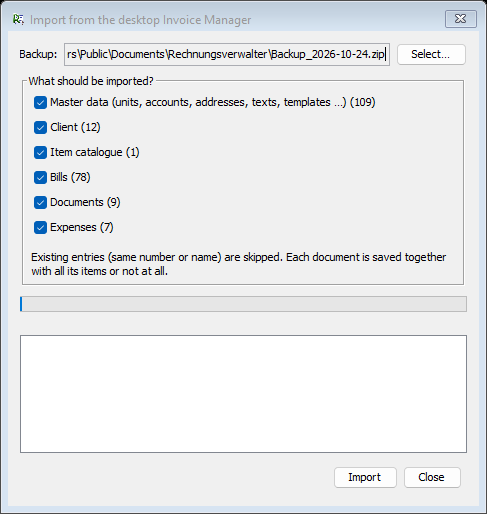
The following areas are available:
- Master data: units, money accounts, bank details, payment methods, your own addresses, footers, invoice and document texts, invoice templates, e-mail templates, invoice and document types, countries, discounts, document statuses and expense accounts
- Clients
- Item catalogue (item groups with their items)
- Invoices with all items
- Documents (e.g. quotes, delivery notes) with all items
- Expenses
3. Import
Click “Import” to start. The progress bar shows how many entries have been processed. “Cancel” stops the import after the current entry; everything imported up to that point stays saved.
When the import is finished, a summary is shown for each area: how many entries were imported, how many were skipped and whether any errors occurred.
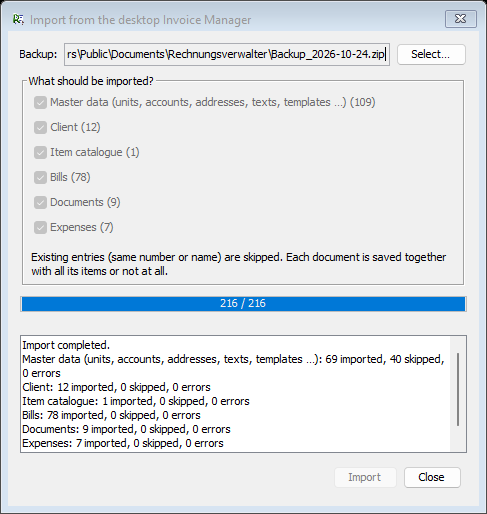
What is skipped? Entries that already exist in the cloud database are not created twice: invoices, documents, expenses and clients with the same number, and master data with the same name. You can therefore run the import again later, for example to add another area – only the missing entries are added. It is normal for part of the master data to be skipped, because a new cloud database already contains default entries such as countries and invoice types.
Complete documents: each invoice and each document is saved together with all of its items in one step – completely or not at all. Even if you cancel, no half-imported documents remain.
Number ranges: after the import, the counters for new invoice, document, expense and client numbers are raised so that no imported number is issued again.
4. Check the result
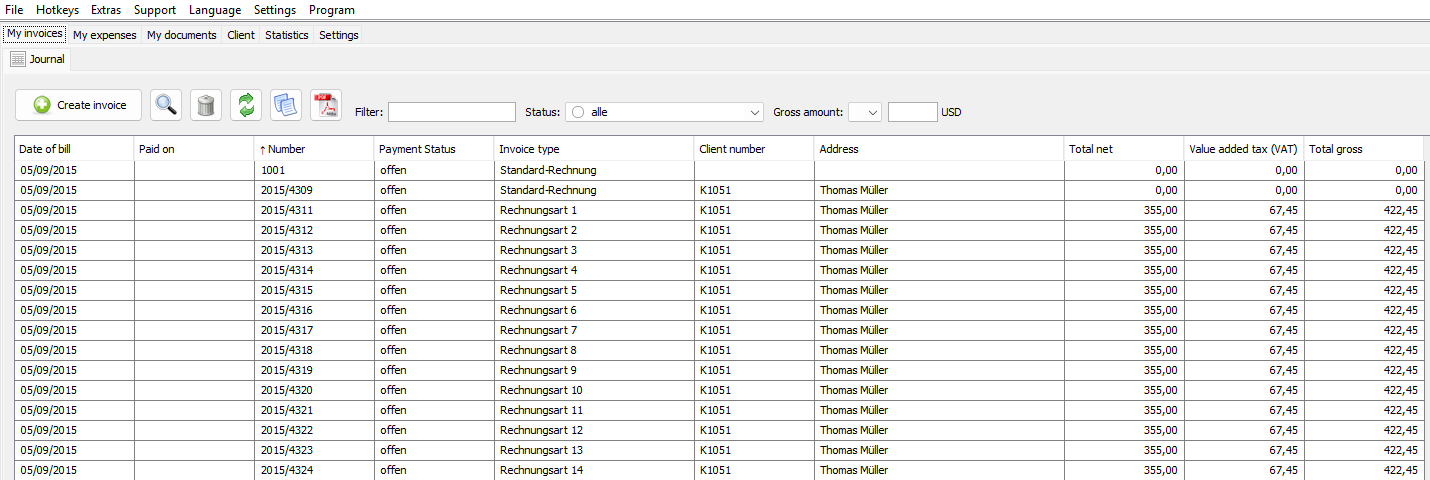
Close the dialog and click the “Update” button (green arrows) in the list “My invoices”. The imported invoices appear with their original numbers, dates and amounts (texts such as invoice types keep the language of the desktop data). The same applies to “My documents”, “My expenses” and “Client”. Other workstations that are logged in see the data after updating as well.
Note: your own logo from the desktop program is not transferred. If needed, add it again in the settings of the cloud edition.
Comments
There are no comments yet.