 Invoice Creator
Large retail chains, for example in food retail, only accept e-invoices that contain additional details: the GLN (Global Location Number) of the invoice recipient and of the delivery location, the customer's VAT ID and the order number from the customer's purchase order. If one of these details is missing, the customer's incoming invoice system rejects the invoice automatically. Since version 2.10.71, Invoice Creator includes all of these details in ZUGFeRD invoices (PDF) and in XRechnung files.
1. Update
Download version 2.10.71 or accept the update the program offers you at startup. Your data is kept; the new fields are created automatically at the first start. Nothing changes for customers without a GLN.
2. Entering the GLN and VAT ID for the customer
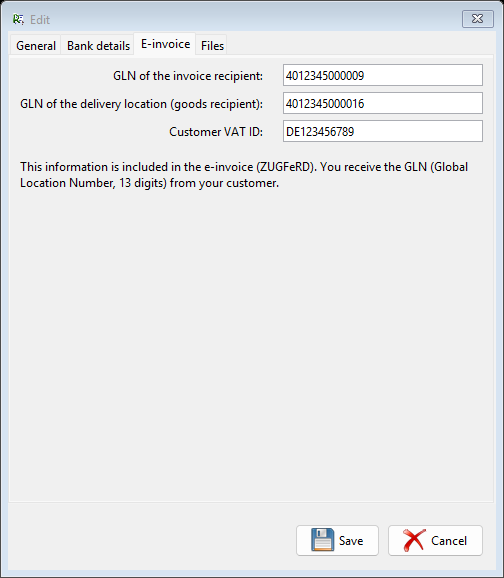
In the “Clients” tab, select the customer and click “Edit”. In the new “E-invoice” tab, enter:
- GLN of the invoice recipient – the GLN of the office the invoice is sent to (for example the customer's head office or accounting department),
- GLN of the delivery location (goods recipient) – the GLN of the store or warehouse you deliver to,
- Customer VAT ID.
A GLN consists of 13 digits. You get it from your customer, usually with the purchase order or in their supplier portal. The program checks the check digit and warns you about typing errors. Then save the customer with “Save”.
3. Your own GLN
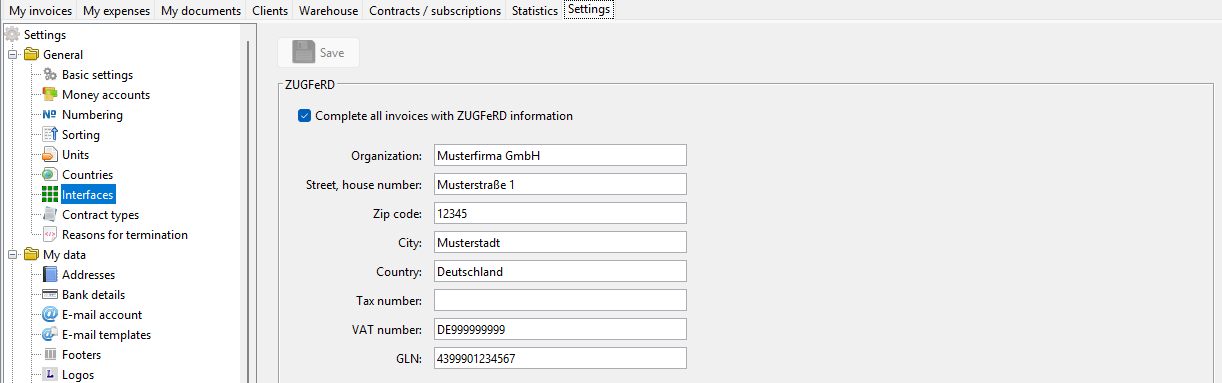
If your customer knows you by a GLN of your own, enter it under Settings → General → Interfaces in the “GLN” field. Your other ZUGFeRD details (organization, address, VAT number) are there as well. The box “Complete all invoices with ZUGFeRD information” must be ticked – see tutorial 10 for more.
4. Order number and delivery note number for each invoice
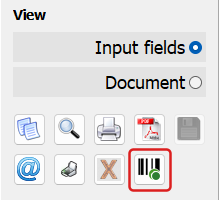
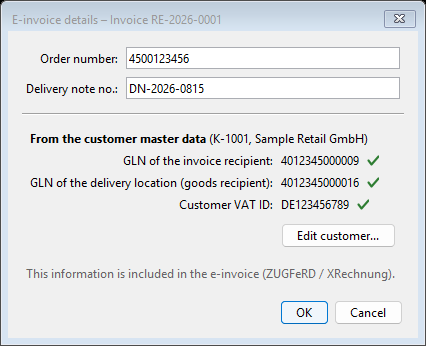
The order number and the delivery note number belong to each individual invoice. Open the invoice; in the toolbar on the left you will find the new “E-invoice details” button (barcode icon, marked red in the picture). It opens a small window where you enter your customer's order number and your delivery note number. As soon as one of the two is filled in, the icon shows a green dot.
5. Prompt when the order number is missing
So that no invoice goes out without an order number, the window opens by itself if the customer has a GLN and the invoice has no order number yet – when you save the invoice as PDF, send it by e-mail or save it as XRechnung. Below the input fields you can see which details from the customer master data go into the e-invoice: a green check mark means “present”, “not specified” with an orange warning sign points to a missing detail. “Edit customer...” opens the customer's “E-invoice” tab directly, for example to enter the GLN of a different delivery location.
- OK saves the details in the invoice and continues.
- Continue without order number continues without an order number; you will not be asked again for this invoice.
- Cancel cancels saving or sending.
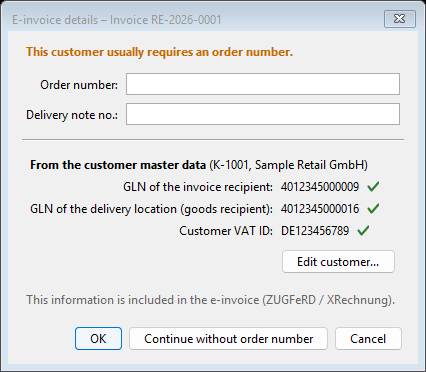
With the button from step 4 you can view and change the details at any time; the note and the “Continue without order number” button are not shown then.
6. What goes into the e-invoice
The details are written to the fields of the European standard EN 16931, which the incoming invoice systems of retail chains evaluate:
- order number: BT-13 (purchase order reference), delivery note number: BT-16,
- your own GLN: BT-29, GLN of the invoice recipient: BT-46, GLN of the delivery location: BT-71 – each with scheme 0088 (GS1),
- customer VAT ID: BT-48.
We checked the ZUGFeRD invoices with the Mustang validator: they are valid PDF/A‑3 files according to EN 16931. The XRechnung export (available when the program runs in German) received two fixes at the same time: your own VAT ID was not written correctly, and special characters such as “&” or “<” in item names and addresses made the file invalid.
7. Other changes in 2.10.71
- SEPA direct debits are created in the current format pain.008.001.08; not all banks accept the previous format any more.
- E-mail account: for well-known providers the program suggests the server and port itself; the login field is now called “E-mail”. See tutorial 8 for details.
Questions and feedback are welcome in the forum or via a support ticket.
Comments
There are no comments yet.