 Invoice Creator
Since version 2.10.64 the Invoice Creator behaves more robustly when the ZUGFeRD option is active: if the ZUGFeRD file cannot be embedded into the PDF, neither saving as PDF nor sending the e-mail is aborted any more. In addition, the program can attach the XRechnung XML to every invoice e-mail automatically. This tutorial shows the necessary settings.
1. Embedding ZUGFeRD data into the PDF invoice
Open “Settings → Interfaces” and tick “Complete all invoices with ZUGFeRD information”. Enter your company details below (organization, street, postal code, city, country as a two-letter code such as “DE”, tax number, VAT number) and click “Save”:
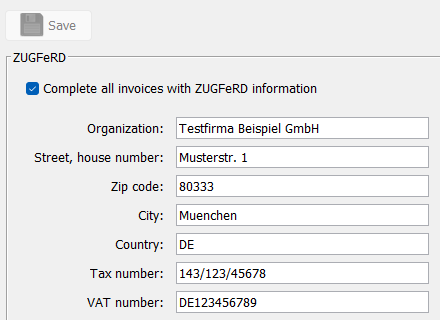
From now on every PDF invoice that you create via “Save as PDF” or when sending an e-mail also contains the machine-readable ZUGFeRD data (PDF/A-3 with an embedded XML file).
What happens if the embedding fails? In rare cases (for example with an unusual invoice template) the ZUGFeRD data cannot be added. Up to version 2.10.63 the program then stopped without any message: the PDF file was not saved or the e-mail was not sent. Since version 2.10.64 the invoice is created as a normal PDF file without ZUGFeRD data in this case, and you get the notice “The ZUGFeRD data could not be embedded in the PDF file. The PDF file was created without ZUGFeRD data.” together with the cause of the error. The full error description is also written to the program's log file (file DATA024 in the data folder), which you can send to the support team if necessary.
2. Attaching the XRechnung XML to the e-mail automatically
XRechnung is the XML e-invoice format required by public authorities in Germany; the invoice is sent as an XML file instead of, or in addition to, the PDF invoice. Up to now the XRechnung had to be created with the “Save as XRechnung” button in the invoice form and attached to the e-mail by hand. Since version 2.10.64 the program can do this step for you.
The XRechnung settings are shown in the settings tree when the program language is German. If you work with the English interface, switch to German once via “Language → Deutsch” and restart the program. Then open “Einstellungen → XRechnung”, check the details of the invoice issuer and the payment method, tick “XRechnung-XML automatisch an E-Mail anhängen” (attach XRechnung XML to e-mail automatically) and click “Speichern” (save). Afterwards you can switch back to English via “Sprache → English”; the setting stays active.
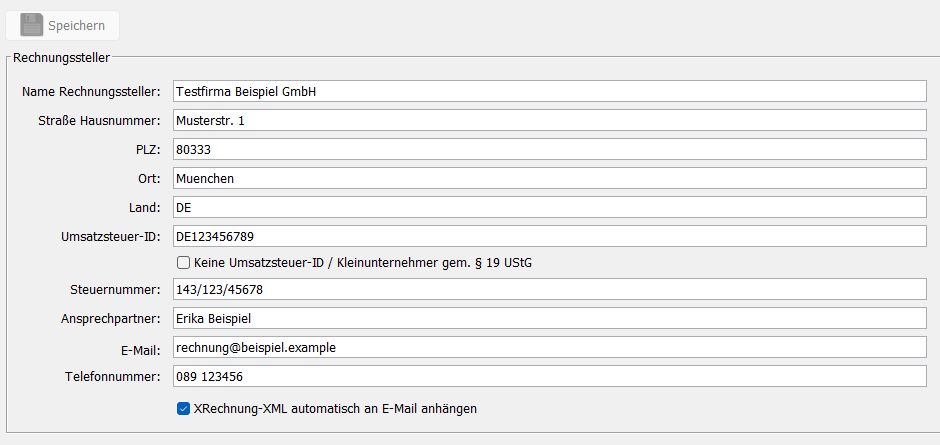
When you now send an invoice with the “send by e-mail” button, the program creates the file “XInvoice <invoice number>.xml” when the e-mail window opens and adds it to the list “Attached files”. You can recognize this by the text “(1 more attachments)” next to the PDF invoice; when you hover the mouse over it, the file names of the additional attachments are shown:

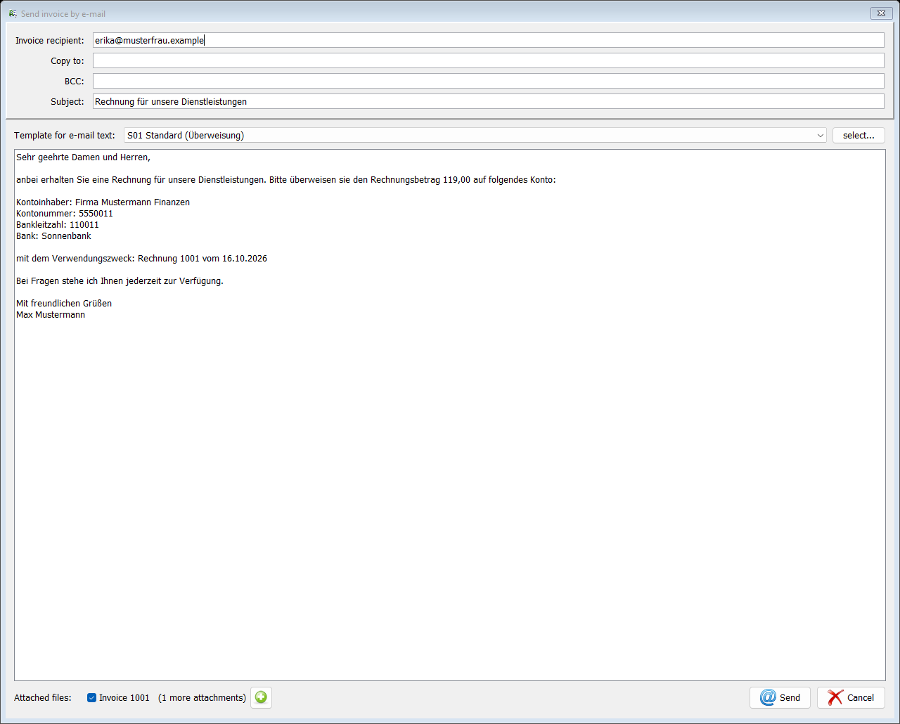
If details required for the XRechnung are still missing (for example the VAT ID of the invoice issuer or the customer's e-mail address), the XML is not attached. Instead the notice “The XRechnung XML was not attached because the following details are missing:” with the list of missing fields appears when the e-mail window opens. You can still send the e-mail with the PDF invoice; add the missing details in the XRechnung settings or in the customer data so that the XML is included the next time.
The XRechnung can still be created manually at any time: in the invoice form, use the “Save as XRechnung” button (toolbar on the left) and choose where to save the XML file.
Note on the e-mail account: sending e-mails requires a configured e-mail account, see Tutorial 8: Email configuration.
Comments
There are no comments yet.