 Invoice Creator
Besides invoices, Invoice Creator creates other documents for your clients: quotations, order confirmations, orders, delivery notes, reminders, payment reminders, letters and terminations. In this tutorial we create a quotation and then turn it into an invoice. The results are available as sample documents.
1. The journal of documents
The tab My documents lists all documents. Click Create document to create a new one.

2. Document type and client
First choose the Document type, here Quotation. Each type has its own statuses (for a quotation: created, sent, accepted, rejected), its own text templates and its own number range. Number and date are filled in automatically; the Subject is built from the type and the number and printed in bold – you can overwrite it. As in an invoice, you choose your logo, your address and the client (button select… next to the client number).

3. Document types
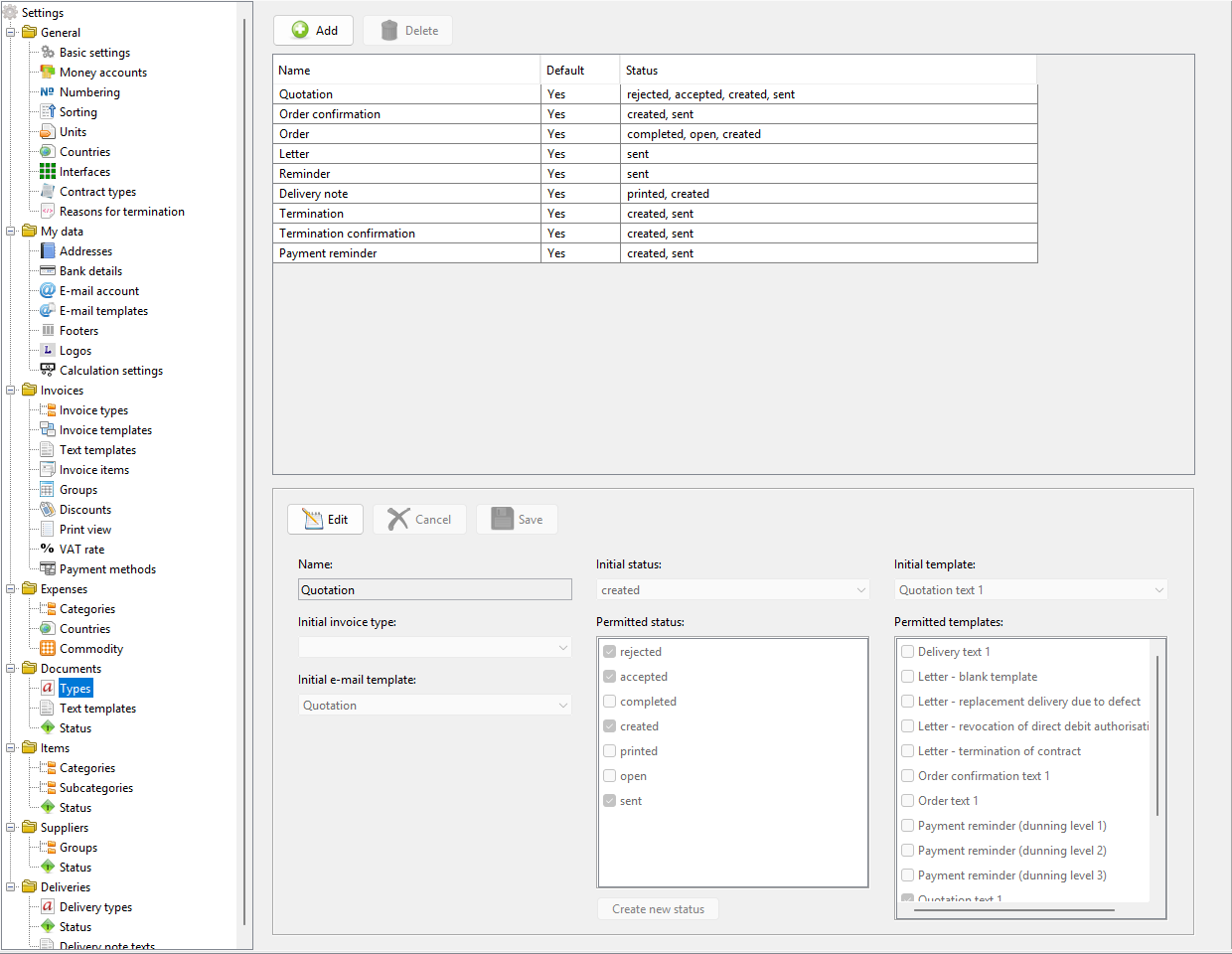
You can change the document types or create your own under Settings → Documents → Types. For each type you set the Initial status, the Permitted status, the Initial template, the Permitted templates and the Initial e-mail template. The texts themselves are under Settings → Documents → Text templates; like invoice templates they have two text blocks and may contain placeholders such as !salutation!, !number!, !date!, !doc_type! or !amount.brutto! (see tutorial 19).
4. Adding items
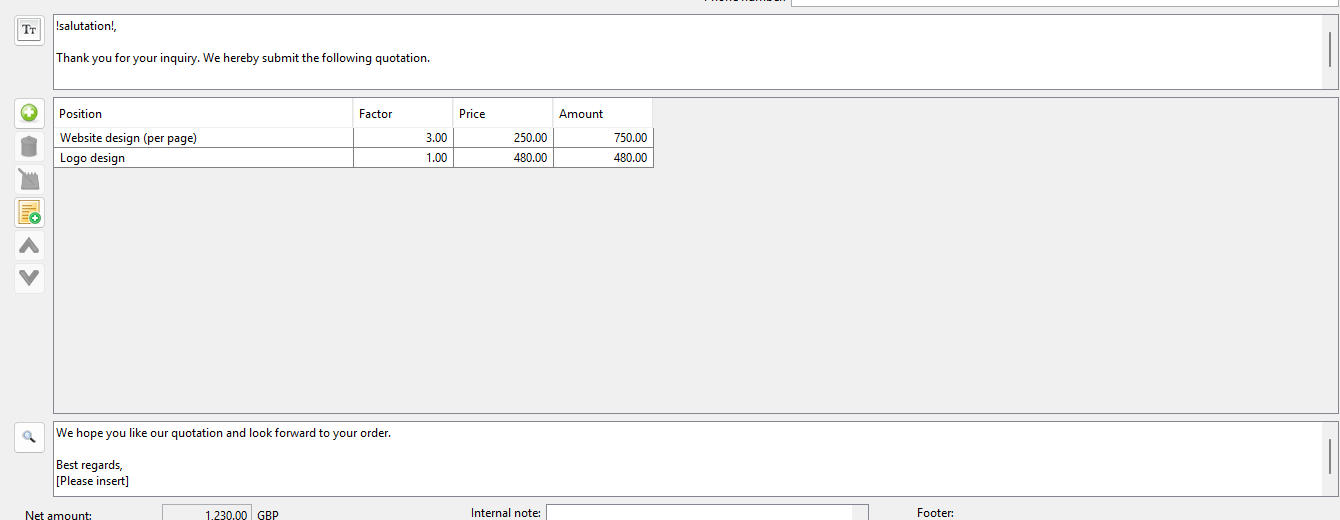
Add the products and services with the green Add button, exactly as in an invoice (see tutorial 16).
5. The finished quotation
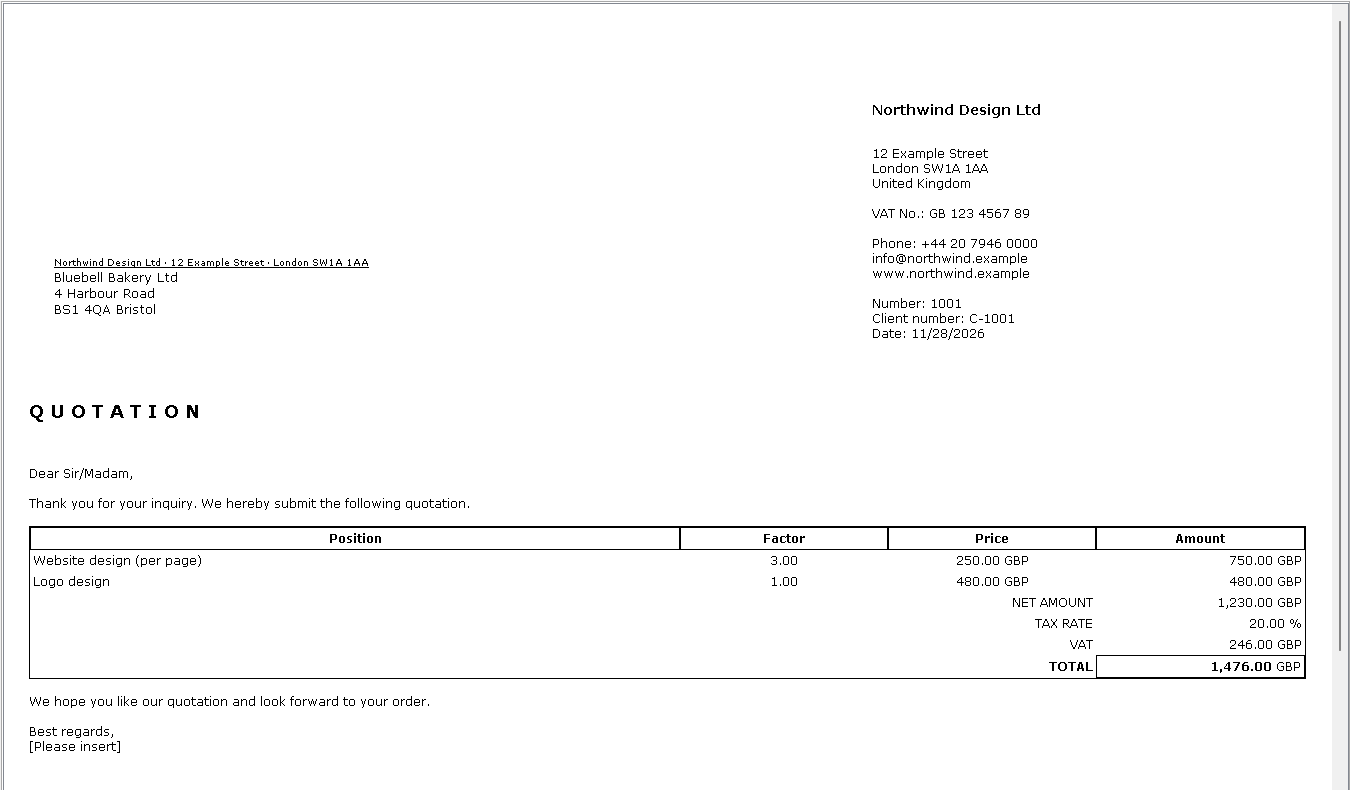
Switch the view on the left from Input fields to Document. The document is saved automatically and shown as it will be printed. With the buttons on the left you print it, save it as PDF or send it by e-mail.
6. Turning the quotation into an invoice
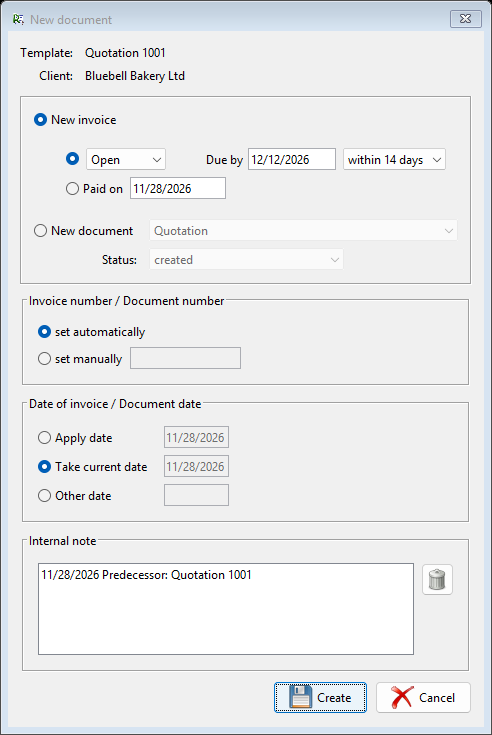
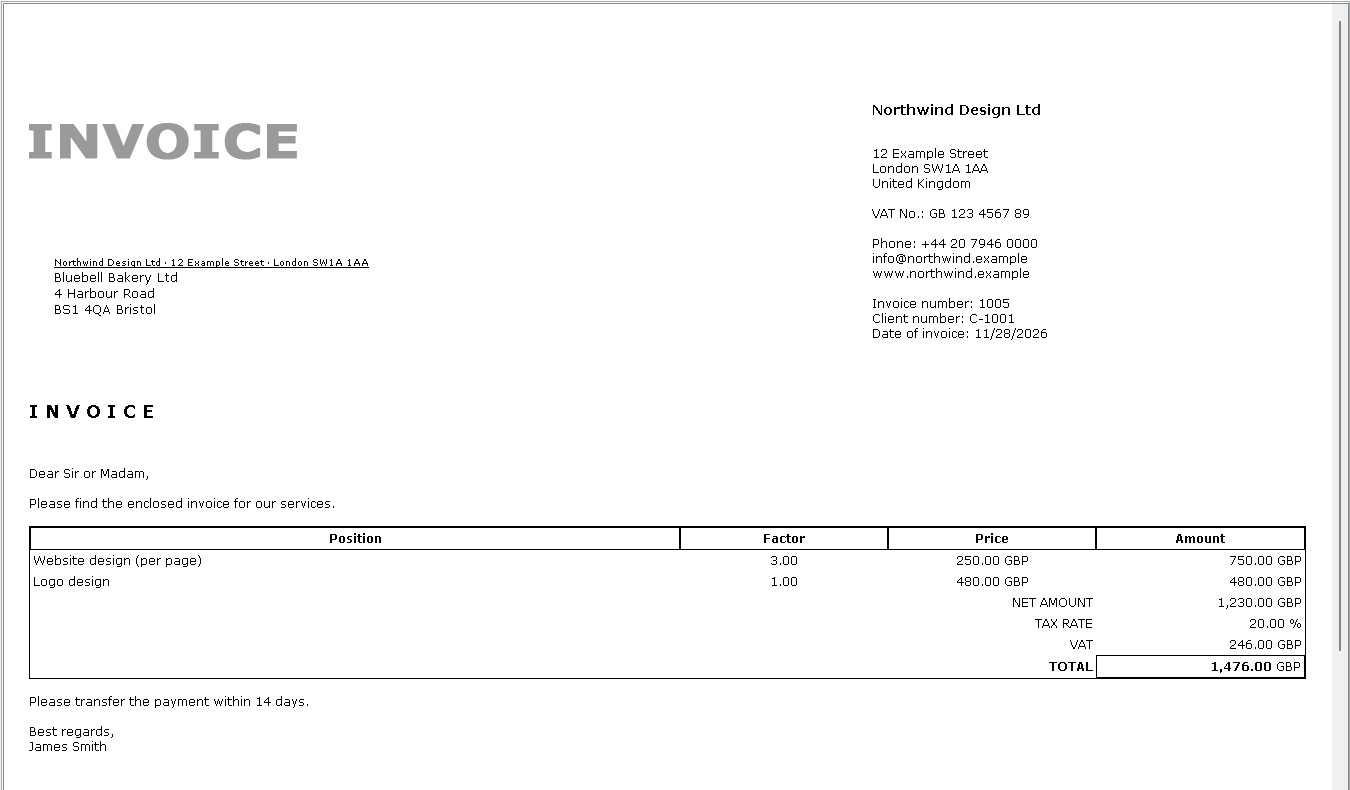
The client accepts the quotation. Open it (or select it in the journal) and click Use this document as a template. In the window New document choose New invoice with the payment status (open with due date, or paid with payment date) – or New document to create, for example, an order confirmation or a delivery note. Number and date are set automatically or manually. The internal note records the predecessor, here “Predecessor: Quotation 1001”. Client, items, footer, logo and your address are taken over. Click Create.
The new invoice opens immediately:
In the same way you create a new invoice or any document from an existing invoice: My invoices → Journal, select the invoice and click Use invoice as a template.
Questions and feedback are welcome in the forum or via a support ticket.
Comments
There are no comments yet.