 Invoice Creator
 is improved regularly, so we recommend always using the current version. Updating does not change your data – invoices, clients and settings are kept.
1. Backing up your data first
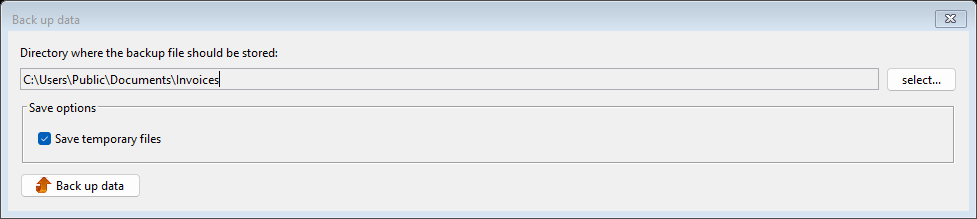
An update is a good moment for a backup. Choose File → Backup → Back up data, select a folder and click Back up data. The backup is a ZIP file; you restore it with File → Backup → Restore data.
2. Automatic update
At every start the program checks whether a newer version is available and offers to install it. You can also start the check yourself with Program → Update program. Click Install and confirm – the program closes, the installer runs, and afterwards you start Invoice Creator again.
If you installed Invoice Creator from the Microsoft Store, Windows updates it automatically through the Store.
3. Manual update
If the automatic update fails (for example because Windows User Account Control blocks it), update manually:
- Close Invoice Creator completely.
- Download the current installer from the download page and run it. Install into the same folder as before – then you do not need to uninstall the old version.
- Start the program. If you uninstall the old version first, only the program is removed – your data stays and is available again after the installation.
Note: with versions 2.10.63 to 2.10.65 the update from within the program always fails. Install the current version once using the installer – afterwards the automatic update works again.
4. Checking the version
Program → Version shows the installed version. Compare it with the version on the download page.

Questions and feedback are welcome in the forum or via a support ticket.
Comments
There are no comments yet.